
Windows Guide
Proxy servers (Windows)
Add, edit, test and remove SOCKS5 and HTTP proxy servers in ProxyBridge for Windows. Authentication, DNS handling, the proxy test, and running several proxies at once.
Proxy servers on Windows
A proxy server is where ProxyBridge sends the traffic of the applications your rules select. Add the proxy once here, then pick it in any number of rules.
Open the list with Proxy > Proxy Settings...
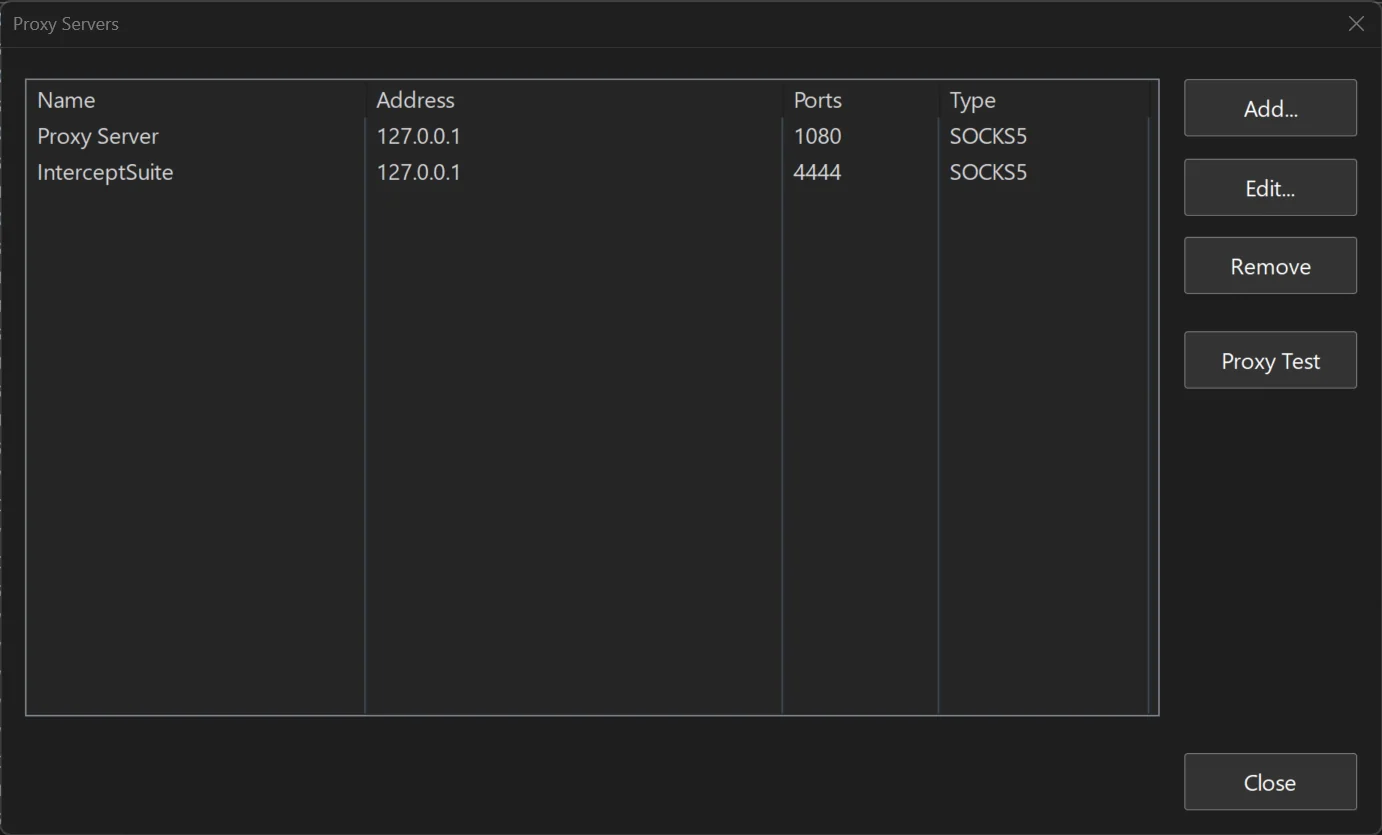
The list shows each proxy's Name, Address, Ports and Type. The buttons on the right are Add..., Edit..., Remove, Proxy Test and Close.
Add a proxy
- Click Add... to open the Proxy Server window.
- Fill in the fields:
| Field | What to enter |
|---|---|
| Name | A label you will recognise in the rule list, for example Burp or Office SOCKS. If you leave it empty the address is used. |
| Address | An IP address (127.0.0.1, 192.168.1.100) or a host name (proxy.example.com, localhost). A host name is resolved once when you save, not for every connection. |
| Port | The proxy's port, for example 1080 (common for SOCKS5) or 8080 / 3128 (common for HTTP). |
| Protocol | SOCKS5 or HTTP. See the table below. |
| Let proxy resolve DNS | Ticked by default. See DNS handling. |
| Authentication | Tick Enable, then enter Username and Password if the proxy requires a login. |
- Click OK. The proxy now appears in the list and in the Action drop-down of the rule editor.
Which protocol to choose
| SOCKS5 | HTTP | |
|---|---|---|
| Carries TCP | Yes | Yes (uses the CONNECT method) |
| Carries UDP | Only if the proxy supports UDP ASSOCIATE | No |
| Authentication | Username and password | Basic authentication |
| Typical use | General purpose, non-HTTP protocols, UDP | Web tools such as Burp Suite, ZAP, mitmproxy, corporate web proxies |
If you are unsure, use SOCKS5. Use HTTP when the proxy only offers an HTTP listener (a typical Burp Suite listener is an HTTP proxy).
Your password is stored in the profile file in
%APPDATA%\ProxyBridge\profiles. Keep that in mind before you share an exported profile; remove the password first or use a throw-away account.
DNS handling
The Let proxy resolve DNS option controls what ProxyBridge sends to the proxy as the destination:
| Setting | What the proxy receives | Use it when |
|---|---|---|
| Ticked (default) | The host name the application looked up, when ProxyBridge knows it (SOCKS5 "domain" address; for HTTP proxies a CONNECT host:port) |
The proxy is remote and should do the lookup (corporate networks, split DNS), or you want the proxy's logs and your security tool to show host names instead of IP addresses |
| Unticked | The IP address the application already resolved | The proxy should only see addresses, or it cannot resolve the names you use |
ProxyBridge learns host names by watching the application's own DNS answers. If the application used encrypted DNS (DNS over HTTPS), no name is learned and the IP address is sent either way.
Test a proxy
Select a proxy in the list and click Proxy Test. The Proxy Checker opens and runs immediately against www.google.com port 80. Change Host and Port and click Retest to try another destination, for example your own server.
The checker reports four tests:
| Test | What it checks |
|---|---|
| 1. Connection to the proxy server | Can ProxyBridge reach the proxy's address and port, and how long it took |
| 2. Connection through the proxy server | Does the proxy accept the login (if any) and open a tunnel to the destination; if the destination is a web server it also loads the default page |
| 3. Proxy server latency | The time to reach the proxy, in milliseconds |
| 4. SOCKS5 UDP ASSOCIATE support | (SOCKS5 only) Whether the proxy allows UDP. Needed for any rule with protocol UDP or Both |
The last line is Testing finished: proxy is ready to work. or Testing finished with errors. A failed test 2 with a login set usually means a wrong username or password; the checker prints a hint.
The test connects directly from ProxyBridge to the proxy. It does not go through your rules.
Edit or remove a proxy
- Edit... opens the same window for the selected proxy. Changes apply to every rule that uses it, at once.
- Remove deletes the proxy. Rules that used it are not changed for you, so open them in Proxy > Proxy Rules... and pick another proxy in the Action drop-down.
Several proxies at once
You can add up to 32 proxy servers (SOCKS5 and HTTP can be mixed). Versions before 4.3.0 allowed 16. Each rule chooses its own proxy in its Action drop-down, so different applications can use different proxies at the same time, with no change in the applications.
Examples:
chrome.exethrough a Burp Suite HTTP listener andcurl.exethrough a SOCKS5 proxy- A local proxy for latency-sensitive tools and a remote proxy for everything else
- One proxy per test environment, with all the rules in a separate profile for each
Tips
- Proxies on the same PC (
127.0.0.1) are fine, but the connection from your application to127.0.0.1itself is not proxied unless you tick Also proxy localhost traffic on the rule. See Proxy rules. - A proxy is only used by a rule whose Action names it. Adding a proxy on its own changes nothing.
- If the proxy lives on another machine, make sure its listener accepts connections from your PC (the proxy's own bind address and firewall).
- Pointing ProxyBridge at a security tool is covered in Use with security tools.