
macOS Guide
Connections and logs (macOS)
See what ProxyBridge is doing on macOS: the Connections log, the Activity Logs, how lines are produced and how many are kept, searching, the Enable Traffic Logging switch, and what each line means.
Connections and logs
The main ProxyBridge window has two tabs. Connections shows every connection ProxyBridge sees and what it did with it. Activity Logs shows messages from ProxyBridge and its extension: what started, what changed, and what went wrong. Both are your first stop when a rule does not do what you expect.
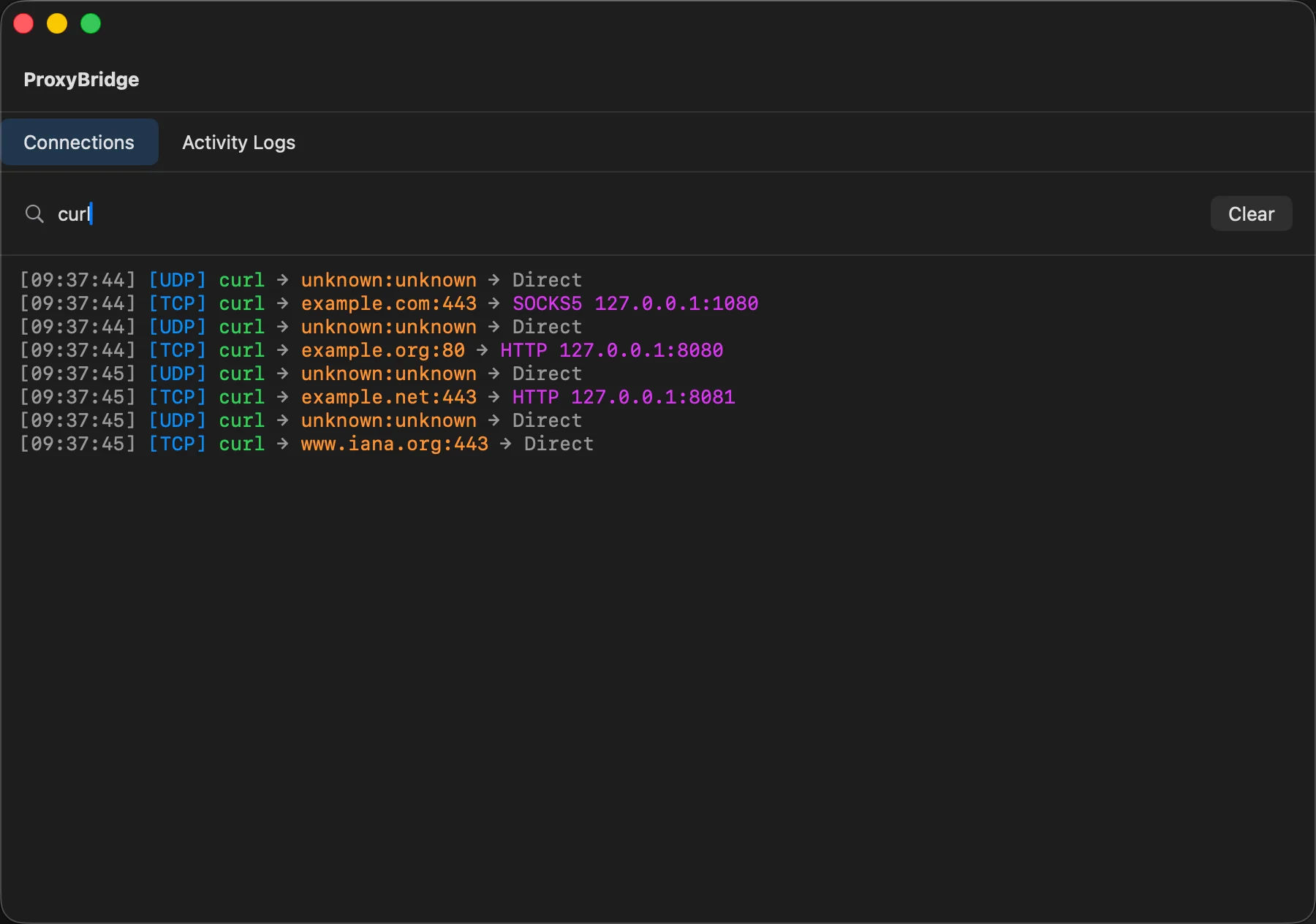
Connections
Each line is one connection (or, for UDP, one flow). The parts, left to right:
[14:04:22] [TCP] com.apple.appstoreagent → 23.201.200.29:443 → Direct
[14:07:10] [TCP] curl → example.com:443 → SOCKS5 127.0.0.1:1080
[14:07:11] [TCP] openssl → api.tracker.example:443 → BLOCK
| Part | Meaning |
|---|---|
[14:04:22] |
The time the window received the line (grey) |
[TCP] or [UDP] |
The protocol (blue) |
| The name (green) | The process name of the program, or its bundle identifier when ProxyBridge could not find the process. This is the text to use in a rule |
destination:port (orange) |
Where the program connected. When ProxyBridge saw the program's DNS lookup, the host name is shown instead of the IP address. For UDP flows the destination is often unknown:unknown (see below) |
| The last part | What happened: Direct, BLOCK, or the proxy that was used, written as SOCKS5 host:port or HTTP host:port (purple) |
Things to know:
- The time is when the window received the line, not the exact moment of the connection. The window asks ProxyBridge for new lines once a second.
- Direct appears for connections that matched a
DIRECTrule and for connections that matched no rule at all. Both go out normally. - UDP lines. macOS gives ProxyBridge a UDP flow when a program opens a UDP socket, and does not say where the datagrams will go. So a UDP line usually reads
unknown:unknownwith the resultDirectorBLOCK. When a UDP flow is sent through a SOCKS5 proxy, ProxyBridge adds a line the first time it sees each destination on that flow, with the proxy shown asSOCKS5. ProxyBridge logs aDirectUDP line for programs without a matching rule only when you have at least one SOCKS5 proxy configured, otherwise the log would fill up with local discovery and time traffic. - TCP lines are written when the connection starts, before it is sent anywhere, so you see them even when the connection later fails.
- ProxyBridge's own connections (the proxy test, update check, and its connection to your proxy) are not logged.
Search
Type in Search connections.... The list shows only lines where the text appears in the time, protocol, process name, destination, port or proxy. The search ignores case. The Connections tab shows all lines again when you clear the box.
Clear
Clear empties the Connections list in the window. It does not change anything else, and new connections are listed again from then on.
Select and copy
The log is an ordinary text area: drag to select, ⌘A to select everything, ⌘C to copy. The view scrolls to new lines only while you are at the bottom, and it leaves your selection alone while you are reading.
How many lines are kept
- The window keeps up to 500 lines per tab. When the limit is reached it drops the oldest and keeps the newest 400.
- ProxyBridge's extension holds up to 500 unread lines and hands out up to 100 per request, once per second. A very busy second (hundreds of new connections) can therefore push out the oldest unread lines before they are shown. Connections are always still routed correctly; only the log can miss lines.
- While the main window is hidden or minimized (for example in the menu bar), ProxyBridge does not read the log. When you open the window again you see the most recent lines the extension kept (up to 500).
Enable Traffic Logging
Proxy > Enable Traffic Logging is a check mark in the Proxy menu. It is on by default and is saved per profile.
| State | Effect |
|---|---|
| On | The extension records connection lines and the window shows them |
| Off | The extension stops recording connection lines and the window stops asking for any lines, including Activity Logs from the extension (messages from the app itself still appear) |
Turn it off when you do not need to look at connections: it saves a little CPU on a very busy Mac. Turn it back on when you are troubleshooting. If a rule seems to be doing nothing and the Connections tab is empty, check this switch first.
Activity Logs
Messages with a time, a level and a text:
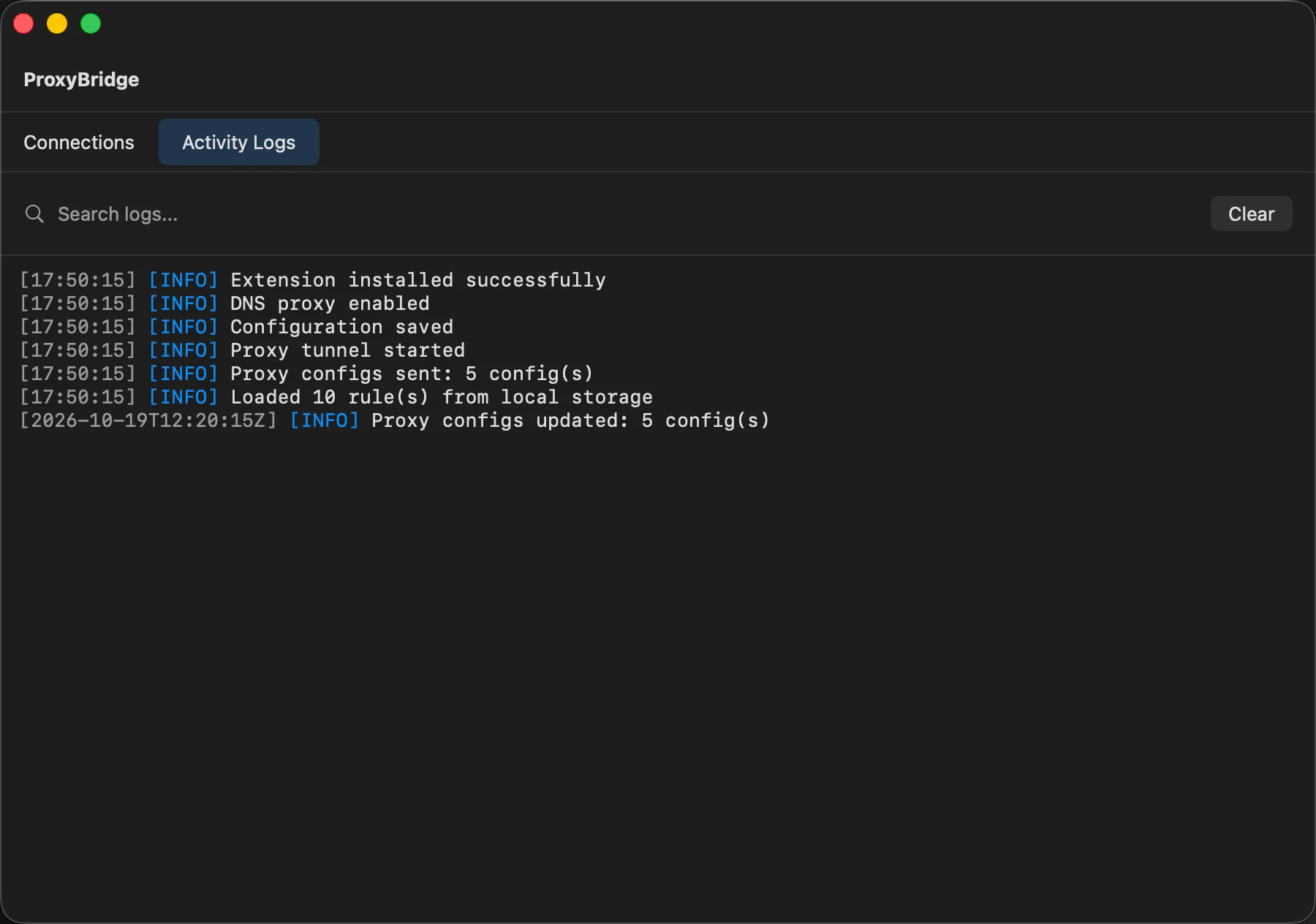
[17:50:15] [INFO] Extension installed successfully
[17:50:15] [INFO] DNS proxy enabled
[17:50:15] [INFO] Configuration saved
[17:50:15] [INFO] Proxy tunnel started
[17:50:15] [INFO] Proxy configs sent: 5 config(s)
[17:50:15] [INFO] Loaded 10 rule(s) from local storage
[2026-10-19T12:20:15Z] [INFO] Proxy configs updated: 5 config(s)
| Level | Colour | Meaning |
|---|---|---|
INFO |
blue | Something started or changed |
ERROR |
red | Something failed. Most are connection problems with a proxy |
Messages come from two places, and the time looks different:
- Messages from the app (start-up, configuration, rules loaded) use the short local time
HH:MM:SS. - Messages from the extension (proxy handshakes, UDP, missing proxies) carry the full UTC time stamp from the extension, for example
2026-10-19T08:32:15Z.
The Search logs... box works like the connection search. Clear empties the list.
Every message the extension can write, with its meaning, is in Troubleshooting. The extension only writes an error once when the same problem would repeat on every connection (a rule that points at a missing proxy, for example), so a single line there can explain a lot of traffic.
On the command line
The command line prints the same information to the terminal: --verbose 1 for the messages, --verbose 2 for connections, --verbose 3 for both.
What macOS does not have
The Windows and Linux apps have extra log features. The macOS app does not (yet):
- a Live Connections table with bytes sent and received,
- log filters (include and exclude lists),
- auto-clearing of old lines or a "log every connection" switch.
Use the search box for quick filtering, or the command line with grep for longer sessions: proxybridge --profile Work --verbose 2 | tee connections.log.