
Configuration
macOS quick start
Route your first macOS application through a proxy in five minutes: add a proxy server, create a rule, check the result. Includes a map of the full macOS guide.
macOS quick start
This page gets one program routed through a proxy in about five minutes, then points you to the page for every feature. If you have not installed ProxyBridge yet, start with Install on macOS.
ProxyBridge only changes where a program's traffic goes. It is not a VPN and does not hide your IP address. What happens to the traffic afterwards depends on the proxy you point it at.
How the pieces fit together
| Piece | What it is |
|---|---|
| Proxy server | A SOCKS5 or HTTP proxy that ProxyBridge sends traffic to, for example 127.0.0.1:1080 |
| Rule | "When this app connects (to these hosts and ports, over TCP and/or UDP), do this action" |
| Action | A proxy (send through one of your proxy servers), DIRECT (leave alone) or BLOCK (refuse the connection) |
| Profile | A saved set of proxy servers, rules and a few settings that you can switch, export and share |
Anything that matches no rule goes out directly, exactly as if ProxyBridge were not running.
0. Open ProxyBridge
Open ProxyBridge from Launchpad or the Applications folder. The first time, macOS asks you to approve the system extension and to allow a network configuration: see Install on macOS. ProxyBridge starts routing as soon as it runs. There is no Start button.
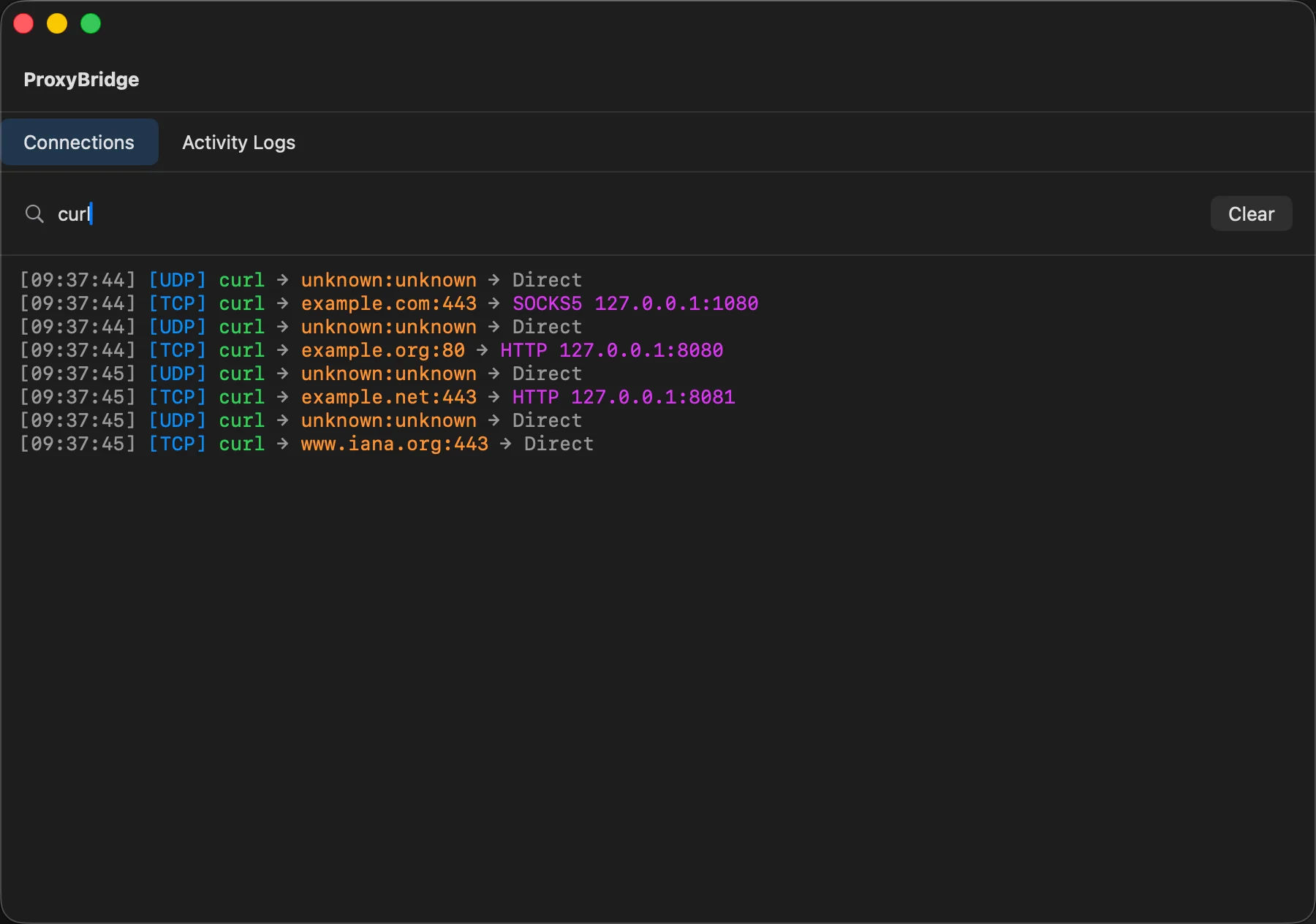
The window has the menus Proxy, Profile, Settings and Help, and two tabs: Connections and Activity Logs.
1. Add a proxy server
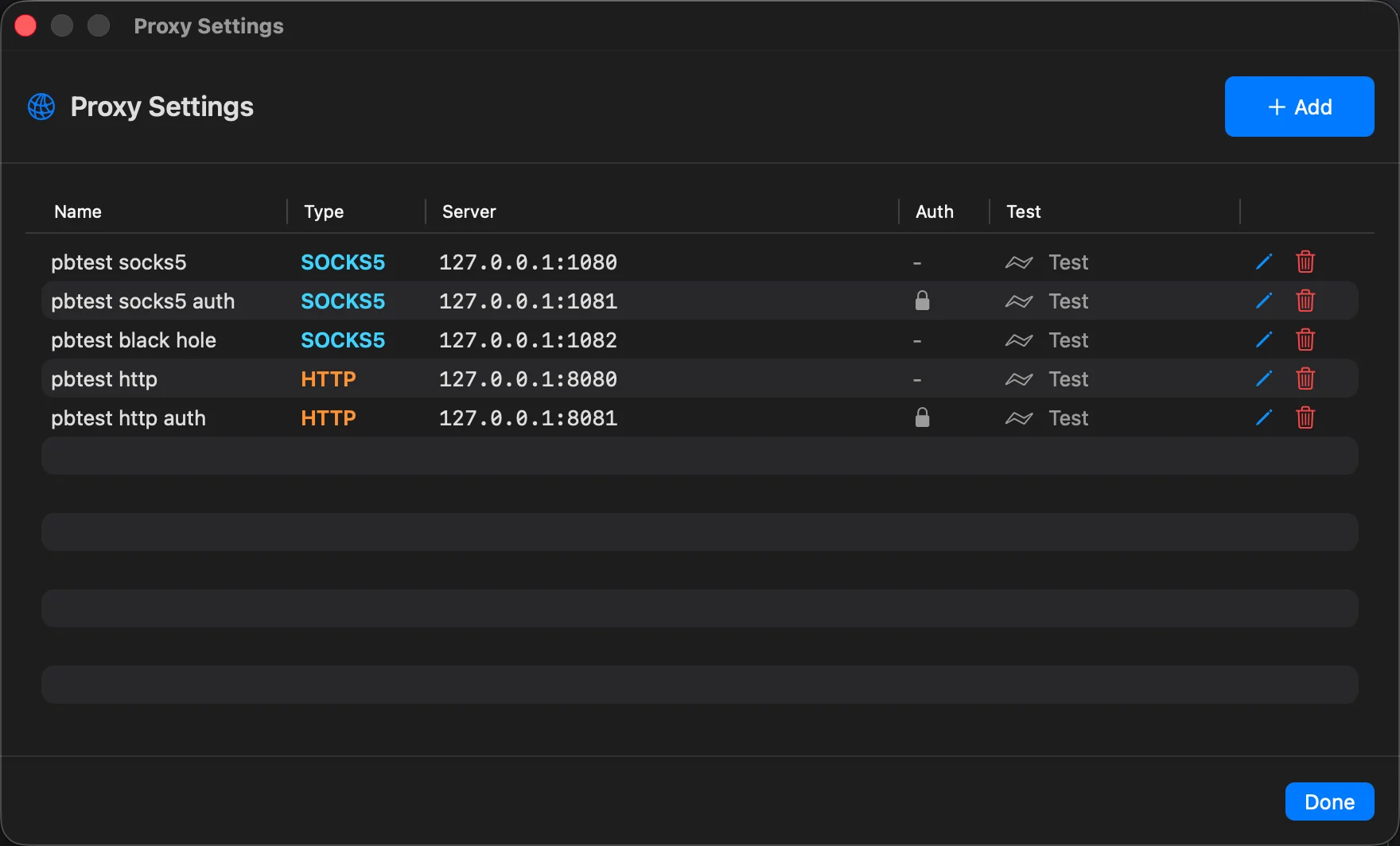
- Choose Proxy > Proxy Settings... (⌘,).
- Click Add.
- Give it a Name (optional), choose the Proxy Type (
SOCKS5orHTTP), enter the Proxy IP/Domain and Proxy Port. - If the proxy needs a login, fill in Username and Password.
- Click Save. Then click Test on the proxy's row to check that it works.
Details, including DNS handling and the four-step proxy test, are on the Proxy servers page.
2. Create a rule
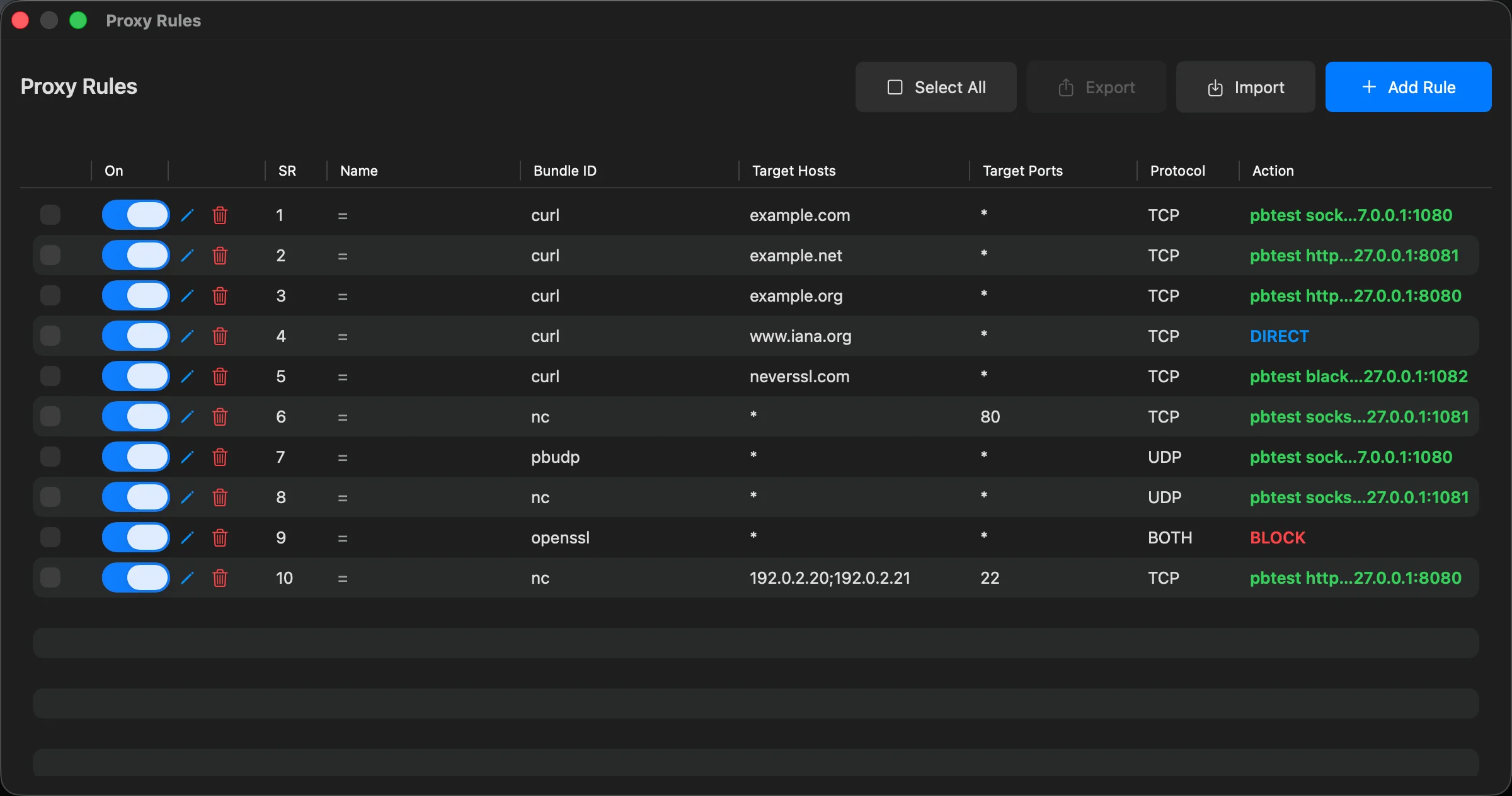
- Choose Proxy > Proxy Rules... (⌘R) and click Add Rule.
- In Process / Bundle Identifier, type the program name, for example
curl. Names are not case-sensitive and*is a wildcard. - Leave Target hosts and Target ports as
*to match everything this program does. - Choose your proxy in Action. Each proxy you added is listed by name, next to DIRECT and BLOCK.
- Click Save Rule. The rule is active at once; the On switch turns it off again.
Details for every field are on the Proxy rules page.
3. Check that it works
Start the program (only new connections are redirected), then look at the Connections tab. Each connection is one line, for example:
[14:07:10] [TCP] curl → example.com:443 → SOCKS5 127.0.0.1:1080
A line that ends in Direct means no rule matched, or a rule says DIRECT.
curl -I https://example.com
If nothing is listed as proxied, see Troubleshooting.
Try it with nothing installed
No proxy at hand? Run a throwaway SOCKS5 proxy with SSH and point ProxyBridge at it:
ssh -D 1080 -N user@some-ssh-server # any SSH server you can reach
Add a SOCKS5 proxy 127.0.0.1:1080, a rule for curl with that proxy, and run curl https://example.com. (SSH tunnels carry TCP only.) For UDP, QUIC and HTTP/3 use a proxy that supports UDP ASSOCIATE, such as Nexus Proxy.
The macOS guide
| I want to... | Read |
|---|---|
| Add, edit and test proxy servers, use authentication, run several proxies | Proxy servers |
| Match apps, hosts, domains, ports and protocols; understand how rules are matched | Proxy rules |
| Keep separate setups, move them between Macs, share them with a team | Profiles |
| See what is going through ProxyBridge and read the messages | Connections and logs |
| Use the menu bar, start at login, check for updates | Settings, menu bar and updates |
| Run a profile without the window, in scripts | Command line |
| See worked examples (browser, curl, desktop apps, UDP, blocking, ...) | Use cases and examples |
| Fix a problem | Troubleshooting and limits |
| Understand what happens to a connection | How it works |
Good to know before you start
- ProxyBridge routes while the app runs. Quit it (⌘Q) and the rules are removed and everything goes direct. With Close to Menu Bar on, closing the window keeps it running. See Settings.
- A specific rule beats a catch-all. Rules for named apps are checked in order; a rule for every app with no limits (
*,*,*) is only the fallback. See How rules are matched. - Only new connections are affected. Restart a program after changing its rule.
- Apps connect from helper processes. Browsers and Electron apps show up under helper names. Read the name in the Connections tab and use a wildcard such as
*chrome*. - UDP rules match the app only. macOS does not tell ProxyBridge the UDP destination, so hosts and ports are ignored for UDP. UDP needs a SOCKS5 proxy with UDP support. See UDP, QUIC and HTTP/3.
- Domain rules need plain DNS. Rules that match host names work only when the app uses ordinary, unencrypted DNS. Turn off "Secure DNS" in the browser for those.
- Your proxy tool is not exempt. If a rule catches every app, add a
DIRECTrule for Burp Suite or mitmproxy, or they will be routed into themselves. See Use cases.