
Getting Started
Install on macOS
Download and install ProxyBridge on macOS 13 or later (Apple silicon and Intel): verify the package, install it, approve the system extension once, update and uninstall.
Installing ProxyBridge on macOS
ProxyBridge for macOS is one installer package. It installs the app, which contains the system extension that does the routing, and a short proxybridge command for the command line.
Requirements
| What | Needed |
|---|---|
| macOS | 13 Ventura or later |
| Mac | Apple silicon or Intel. The package is universal: it runs natively on both, and does not ask Apple silicon users to install Rosetta |
| Rights | An administrator password for the installer, and to approve the system extension |
Download and verify
ProxyBridge releases are published on the ProxyBridge GitHub releases page and on the download page. Download the latest ProxyBridge-vx.x.x-Universal-Installer.pkg.
Each release lists a sha256 checksum for every file. Before you open the package, run in Terminal:
shasum -a 256 ~/Downloads/ProxyBridge-v*-Universal-Installer.pkg
and compare the result with the checksum on the releases page.
Run the installer
- Double-click the
.pkgfile. The macOS Installer opens. - Click through the steps and click Install. Enter your password when asked.
- When it says the installation succeeded, click Close.
What the installer does
| What | Where |
|---|---|
| ProxyBridge (the app, with the system extension inside it) | /Applications/ProxyBridge.app |
The proxybridge command (a small launcher script) |
/usr/local/bin/proxybridge |
The launcher runs /Applications/ProxyBridge.app/Contents/MacOS/ProxyBridge --cli. If /usr/local/bin does not exist the installer creates it, and it skips the launcher without failing the installation if it cannot write it. The app is always installed to /Applications, even when another copy exists somewhere else on the disk.
The installer does not start the extension. That happens the first time you open the app.
First start and approval
Open ProxyBridge from Launchpad or the Applications folder.
macOS says that a system extension was blocked, or asks you to allow it. This is the extension ProxyBridge uses to redirect traffic. It is required.
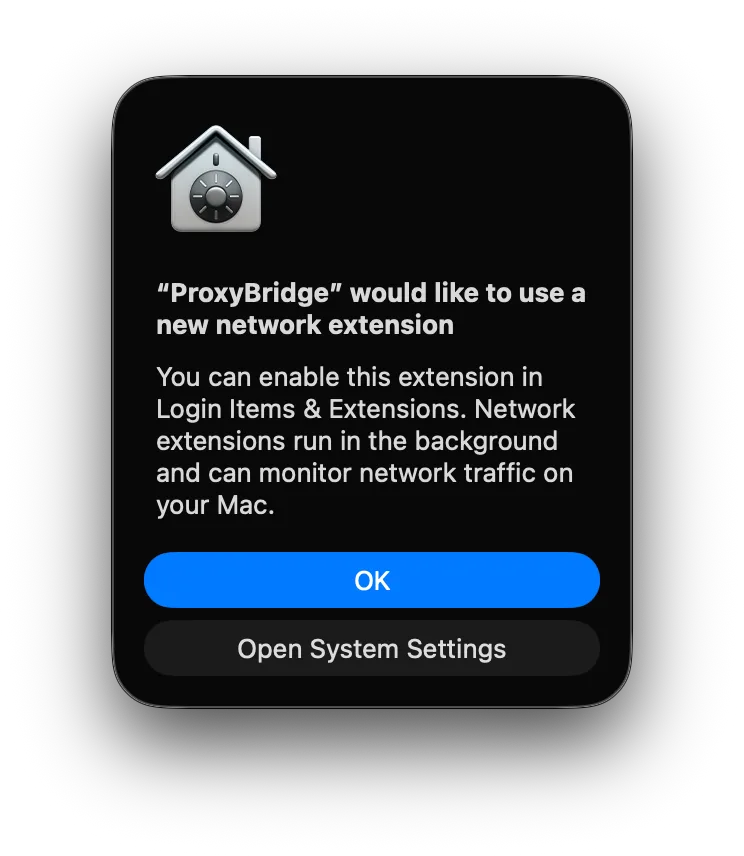
Click Open System Settings and approve it. Depending on your macOS version, this is one of two places:
- General > Login Items & Extensions: scroll to Extensions, open By Categories, choose Network Extensions and switch ProxyBridge on.
- Privacy & Security: scroll to Security and click Allow next to the message about ProxyBridge.
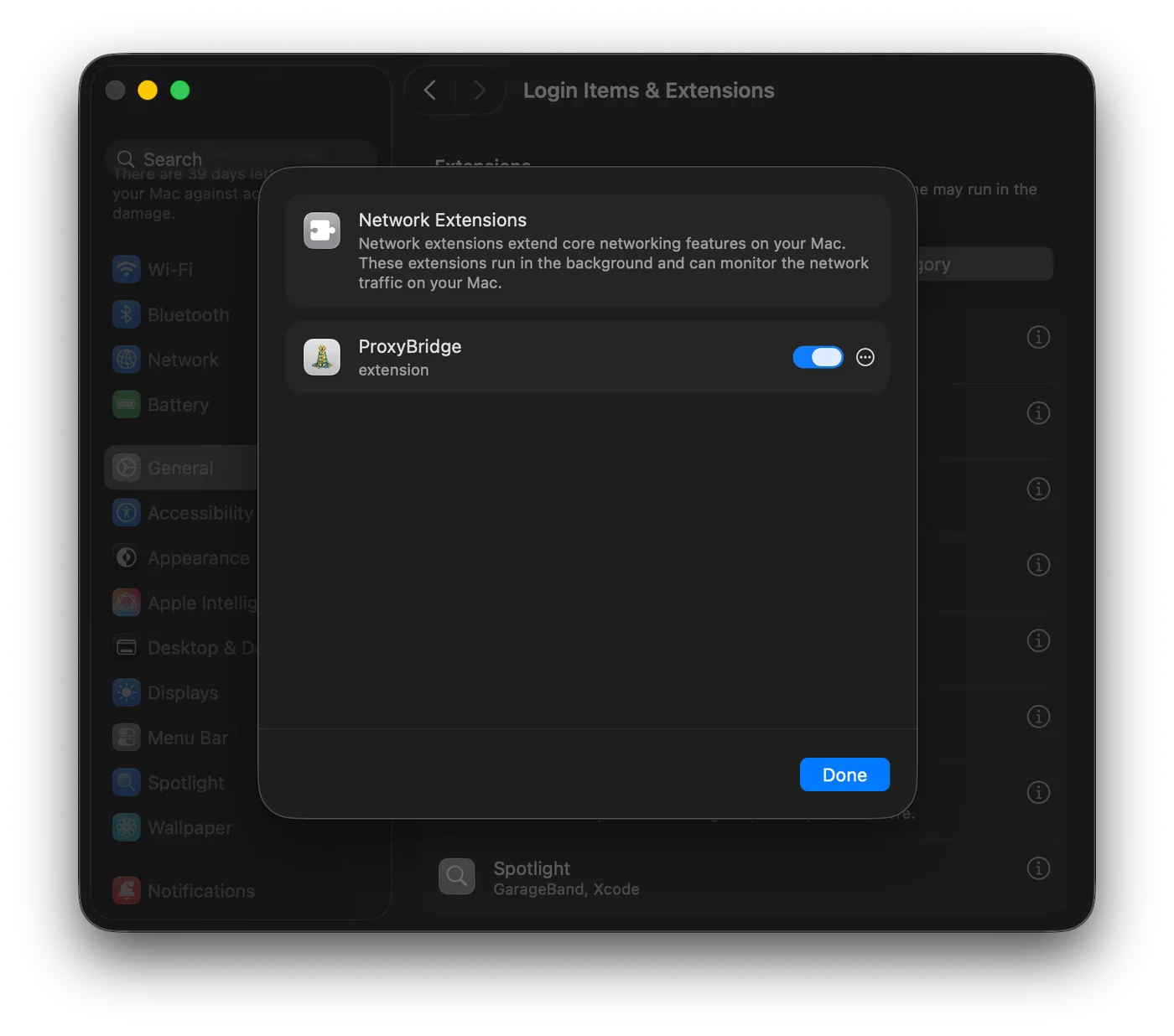
Enter your password (or use Touch ID).
macOS also asks once to allow ProxyBridge to add a network configuration. Click Allow.
Open the Activity Logs tab. You should see
Proxy tunnel startedandDNS proxy enabled. In the Connections tab your Mac's traffic starts to appear.
This approval is needed once. After an update macOS can ask again if the extension changed, and sometimes asks for a restart. The step-by-step with more detail and fixes for common problems is in the macOS install guide. If something fails, see Troubleshooting.
Gatekeeper. If macOS refuses to open the
.pkgbecause it is from an unidentified developer, Control-click (right-click) the file, choose Open, and confirm.
Updating
- ProxyBridge checks for updates each time it starts. When a newer version exists, an Update Available window offers Update Now: it downloads the installer, opens it, and quits ProxyBridge so the installer can replace it. See Updates.
- You can also check at any time with Help > Check for Updates..., or on the command line with
proxybridge --update. - Or download the new
.pkgyourself and run it over the old version. Your profiles, proxies and rules are kept. - Quit ProxyBridge before installing.
Uninstalling
- Quit ProxyBridge (⌘Q). This removes its rules and stops the tunnel.
- Move
/Applications/ProxyBridge.appto the Trash. macOS removes the system extension when the app is gone (it can wait until you restart the Mac;systemextensionsctl listshows its state). - Remove the command, if you installed it:
sudo rm /usr/local/bin/proxybridge. - Optional: delete the saved settings, including your profiles and any proxy passwords stored in them:
~/Library/Containers/com.interceptsuite.ProxyBridge. - Optional: in System Settings > Network, remove any leftover ProxyBridge entries (the proxy and DNS configurations).
Next steps
- Route your first app: macOS quick start.
- Read the full macOS guide: proxy servers, rules, profiles, logs, command line, examples, troubleshooting and how it works.
- Send an app into Burp Suite, mitmproxy or InterceptSuite: Use with security tools.