
Linux Guide
Proxy rules (Linux)
Every field of a ProxyBridge rule on Linux: program names and paths, hosts and domains, ports, protocol, action and localhost handling. How rules are ordered and matched, what is always direct, and worked examples.
Proxy rules on Linux
A rule says: when this program connects to these hosts and ports over this protocol, do this. Rules decide which traffic is sent through a proxy, left alone, or blocked. Open them with Proxy > Proxy Rules...
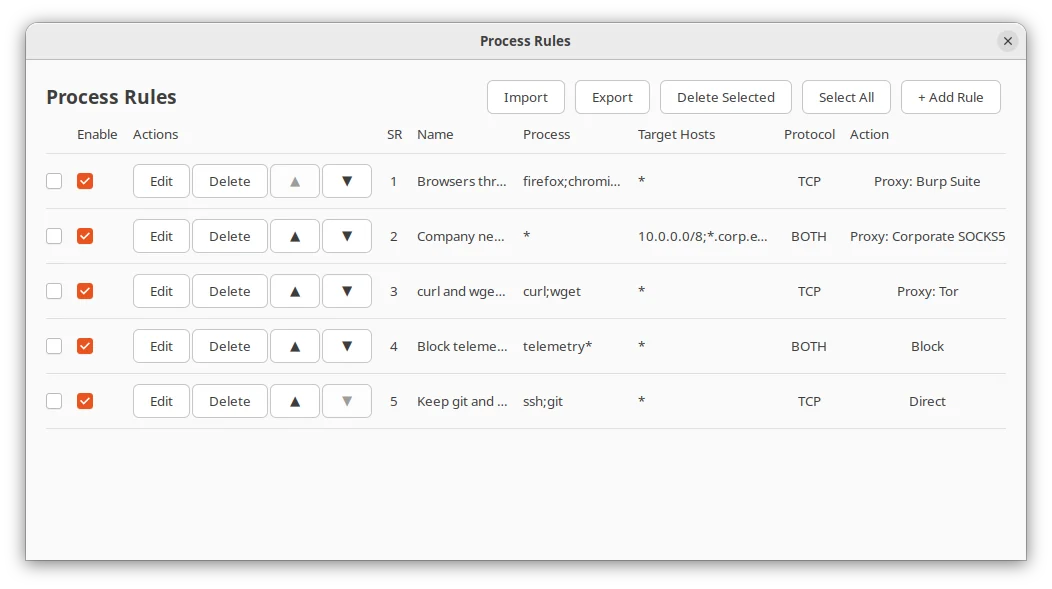
The rules window
| Part | What it does |
|---|---|
| + Add Rule | Create a new rule |
| Edit (on each row) | Change the rule |
| Delete (on each row) | Delete the rule |
| Enable check box | Switch a rule on or off without deleting it |
| ▲ / ▼ | Move the rule higher or lower in the list (see Rule order) |
| Check box at the start of a row, Select All, Delete Selected | Select several rules and delete them at once |
| Export, Import | Save the selected rules to a JSON file, or load rules from one (see Export and import rules) |
| Columns | SR (the position, which is also the priority), Name, Process, Target Hosts, Protocol, Action (Proxy: <name>, Direct or Block, plus (+localhost) when localhost is included) |
A rule change applies to connections opened afterwards. Connections that are already open keep the route they started with.
A profile holds up to 4096 rules.
Add or edit a rule
Click + Add Rule (or Edit on a row) to open the rule window.
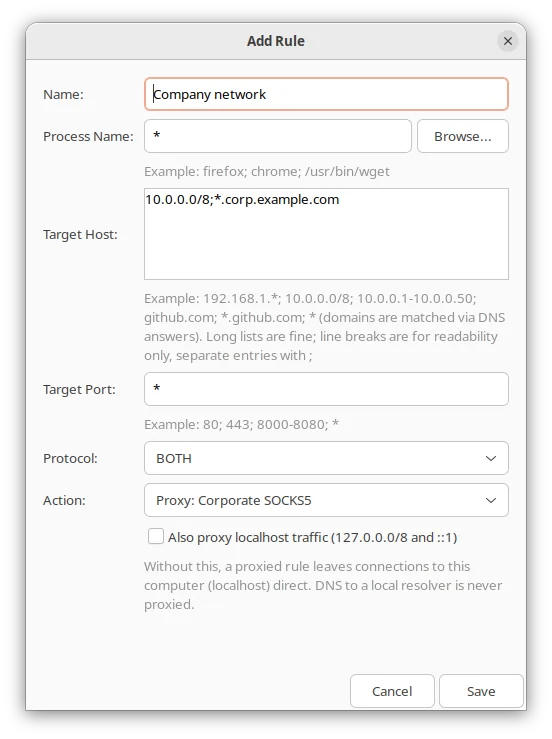
| Field | Meaning |
|---|---|
| Name | Your label for the rule (up to 127 characters). Shown in the rule list and stored in the profile. Optional |
| Process Name | Which programs the rule is for. Browse... picks an executable from disk and enters its file name |
| Target Host | Which destinations: IP addresses, ranges, networks and domain names, in one multi-line box |
| Target Port | Which destination ports |
| Protocol | TCP, UDP or BOTH |
| Action | One list: Direct, Block, or Proxy: |
| Also proxy localhost traffic | Active only when the action is a proxy. See Localhost traffic |
A rule only matches when all of Process, Target Host, Target Port and Protocol match. If something is not valid (a bad address, a port above 65535, ...) the window stays open and tells you what is wrong.
Process names
The Process Name field holds one or more patterns. Rules always match by program name or path, never by process ID, so a rule keeps working after the program restarts.
| What you type | Matches |
|---|---|
* |
Every program |
curl |
A program whose file name is curl, wherever it is installed |
firefox; chromium; google-chrome |
Any of them. Separate entries with ; (a comma works too) |
fire* |
Wildcards: * stands for any text, ? for one character. fire*, *chrome* and python3* all work |
/usr/bin/curl |
One exact program, by full path |
/opt/myapp/* |
Wildcards inside a path work too: every program under that folder |
How the match works:
- Matching is case-sensitive on Linux:
Firefoxis notfirefox. - Each pattern is compared with both the program's file name (
curl) and its full path (/usr/bin/curl). A pattern without a/can therefore only match a file name; a pattern with a/is what you use to tell apart two programs that share a name. - The program is identified by the executable file it was started from, not by the name shown in
psortop, which a program can change. - A rule can list up to 64 patterns.
Scripts and runtimes. A Python script is the program
python3.12(or whatever interpreter runs it), a Node.js script isnode, a Java program isjava. A rule formyscript.pynever matches. Use the interpreter's name, and look at the Connections log to see the exact name ProxyBridge sees.
Programs that start helpers. Many programs connect from a helper process with a different name.
aptdownloads through helper programs calledhttpandhttps; a browser may use several processes with the same file name. Start with a rule for the program you know, open the Connections tab, and add the name you see there. See Troubleshooting.
Target hosts
Target Host limits the rule to certain destinations. Leave it as * for any destination. IP addresses and domain names go in the same box and can be mixed:
10.0.0.0/8; github.com; *.google.com
The box is multi-line. Write one entry per line if you like: the line breaks are only for reading, and entries are still separated by ; (or a comma). A rule can list up to 1024 entries.
| Kind | Example | Notes |
|---|---|---|
| Any | * |
Every destination |
| Single IPv4 | 192.168.1.1 |
|
| IPv4 with wildcards | 192.168.*.*, 10.*.*.* |
* replaces a whole number between the dots |
| IPv4 pattern with ranges | 10.1-5.*.7 |
Each number can be a range |
| IPv4 range | 10.10.1.1-10.10.255.255 |
Inclusive |
| IPv4 network (CIDR) | 10.0.0.0/8, 192.168.1.128/25 |
A network and a prefix length from /0 to /32 |
| Single IPv6 | ::1, 2001:db8::1 |
|
| IPv6 network (CIDR) | 2001:db8::/32, fe80::/10 |
|
| Domain | github.com |
That exact name only |
| Domain with a wildcard | *.github.com, api?.example.org |
* stands for any text, ? for one character |
*.github.comdoes not matchgithub.comitself. A domain entry matches exactly what it says. To cover a site and all its sub-domains, list both:github.com; *.github.com. (The Windows app treats*.github.comas covering both; Linux is stricter.)
Domain names are compared in lower case, and a trailing dot (github.com.) is ignored. An entry that is not valid (for example 10.0.0.0/33, or a domain with a space) is refused when you save.
Domain names need plain DNS
ProxyBridge cannot read an encrypted connection, so it learns host names by watching the application's own, ordinary DNS lookups and remembering which name belongs to which IP address. So:
- Domain rules work only when the application uses unencrypted DNS. Browsers that use "Secure DNS" or DNS over HTTPS (Firefox, Chrome and others can) hide the lookups. Turn that off in the browser for domain rules to work, or match on IP addresses instead.
systemd-resolvedwith DNS over TLS has the same effect. - The application must have looked the name up after ProxyBridge started the rule. An address the application resolved earlier has no known name (names in
/etc/hostsare loaded when the engine starts). - Applications that take an address from a config file, or hard-code it, never look anything up. Use an IP rule.
- IPv6 destinations have no domain matching yet (only
AandCNAMEanswers are used). An IP rule always works. - If two names share one address, the name looked up most recently wins.
- When one of your rules contains a domain, the DNS traffic (port 53) of the programs that rule covers takes one extra hop through ProxyBridge, which forwards it unchanged and reads the answers. Programs no domain rule covers are not touched.
Target ports
| You type | Matches |
|---|---|
* (or empty) |
Every port |
443 |
One port |
80; 443; 8080 |
Several ports |
8000-9000 |
A range (inclusive) |
80; 443; 8000-9000 |
Ports and ranges together |
A list can have up to 64 entries.
Protocol
| Choice | Matches |
|---|---|
| TCP | TCP connections only (web, most APIs, databases, SSH) |
| UDP | UDP only (DNS, QUIC/HTTP/3, games, voice) |
| BOTH | Either |
UDP only works through a SOCKS5 proxy, and not every SOCKS5 proxy supports it. An HTTP proxy cannot carry UDP: a rule that sends UDP to an HTTP proxy leaves that UDP traffic direct, and ProxyBridge writes a warning naming the rule in the Activity Logs. See UDP, QUIC and HTTP/3.
Action
| Action | What happens to matching traffic |
|---|---|
| Direct | Left alone. It goes out normally. Useful for exceptions placed above a broader rule |
| Block | The connection is refused. The program's connection fails at once, or its UDP datagrams are dropped |
| Proxy: |
Sent through that proxy. Every proxy you added in Proxy servers is listed by name |
Until you add at least one proxy, only Direct and Block are offered. A new rule starts on the default proxy if there is one.
If a rule needs a proxy that is not there (for example you deleted the last proxy), its traffic is blocked, not sent directly. A proxy that cannot be reached closes the connection; it is never replaced by a direct connection.
Localhost traffic
Connections to your own machine (127.0.0.1, ::1, anything in 127.0.0.0/8) are normally not sent to a proxy, even when they match a proxy rule. Most proxies refuse localhost on purpose, and many programs talk to local helpers (a database, a desktop service, systemd-resolved on 127.0.0.53) that must stay local.
The check box Also proxy localhost traffic (shown when the action is a proxy) changes that for this rule only:
| Check box | Connections to 127.x.x.x / ::1 from the matching programs |
|---|---|
| Off (default) | Go direct. All their other traffic still follows the rule |
| On | Go through the proxy as well |
Tick it when the proxy runs on this computer and you want to see the program's local traffic too, typically for security testing of a client/server pair on one machine. Do not tick it for a proxy on another computer: that machine cannot reach services on yours.
Details:
- Block and Direct rules never touch localhost traffic.
- DNS to a local resolver (port 53 on
127.0.0.53, for example) is never proxied, even with the check box on, so a broad rule cannot break name resolution. - The relay's own connections are never proxied.
- The setting belongs to the rule, so you can proxy one program's local traffic and leave another's alone.
Rule order
Rules are checked from top to bottom, and the first match wins. Put specific rules above general ones. The SR column shows each rule's position.
1  git;ssh   any host   22;9418    Direct        <- an exception
2  firefox   any host   80;443     Proxy: Burp   <- only web traffic of Firefox
3  *         any host   any port   Block         <- everything else (see the note)
A rule that matches everything a program does (hosts *, ports *, protocol BOTH) ends the list for that program: the rules below it are never reached. Unlike the Windows app, Linux does not treat such a catch-all specially: it simply matches at its own position, so put it last.
Use ▲ and ▼ to reorder. Rules you have switched off are skipped. If no rule matches, the connection goes out directly, exactly as if ProxyBridge were not running.
Always direct
Some addresses are never proxied, so the network keeps working:
| IPv4 | IPv6 |
|---|---|
Loopback 127.0.0.0/8 and 0.0.0.0/8 (unless a proxy rule has Also proxy localhost traffic) |
Loopback ::1 (same exception) |
Broadcast (255.255.255.255) |
Multicast (ff00::/8) |
Multicast and reserved (224.0.0.0 and above) |
Link-local (fe80::/10) |
| DHCP (UDP ports 67 and 68) |
These are decided before your rules are looked at, so no rule applies to them (a Proxy action becomes Direct, and a Block rule does not stop them either). The one exception is loopback traffic, which a proxy rule can include with Also proxy localhost traffic.
Export and import rules
- Export saves the rules whose check boxes you ticked to a JSON file (
proxy_rules.jsonis suggested). It asks you to select at least one rule first. - Import reads a JSON file of rules and adds them. The file format is the same as the Windows and macOS apps use for rule files, so a rule file moves between the three. Rules that fail validation are skipped and listed in the message (
Imported 3 rules, 1 failed validation and were skipped: ...).
To move a whole setup (proxies and rules and settings) use a profile instead.
Examples
| Goal | Process | Target Host | Port | Protocol | Action |
|---|---|---|---|---|---|
| Send a browser through a proxy | firefox; chromium |
* |
* |
TCP | your proxy |
| Send only one site's traffic through the proxy | firefox |
github.com; *.github.com |
443 |
TCP | your proxy |
| Send only the company network through the corporate proxy | * |
10.0.0.0/8; *.corp.example.com |
* |
BOTH | corporate proxy |
| Keep a tool local, send everything else | rule 1: curl / Direct. Rule 2: * |
* |
* |
BOTH | your proxy |
| Block a program completely | telemetry-agent |
* |
* |
BOTH | Block |
| Block one remote service for a program | myapp |
203.0.113.7 |
* |
BOTH | Block |
| See a program's local traffic in a security tool | myapp |
* |
* |
TCP | your proxy, with Also proxy localhost traffic ticked |
| Send a game's UDP through a SOCKS5 proxy | game |
* |
* |
UDP | a SOCKS5 proxy that supports UDP |
| Route every Python script | python3* |
* |
* |
TCP | your proxy |
More worked scenarios are in Use cases and recipes.
Tips
- Start with a rule for one program and check the Connections tab before you add more.
- Name your rules. The name shows in the rule list and in the profile file, so you can tell your rules apart a month later.
- Rules are saved in the active profile, so switching profile switches the whole rule set.
- To stop everything for a moment without touching rules, use Proxy > Enable ProxyBridge (Settings, pausing and start at boot).
- Long host lists and domain rules are handled by ProxyBridge's relay instead of the kernel. They work the same way, with a small cost for UDP; see How it works.