
Configuration
Linux quick start
Route your first Linux program through a proxy in five minutes: add a proxy server, create a rule, check the result. Includes a map of the full Linux guide.
Linux quick start
This page gets one program routed through a proxy in about five minutes, then points you to the page for every feature. If you have not installed ProxyBridge yet, start with Install on Linux.
ProxyBridge only changes where a program's traffic goes. It is not a VPN and does not hide your IP address. What happens to the traffic afterwards depends on the proxy you point it at.
How the pieces fit together
| Piece | What it is |
|---|---|
| Proxy server | A SOCKS5 or HTTP proxy that ProxyBridge sends traffic to, for example 127.0.0.1:1080 |
| Rule | "When this program connects (to these hosts and ports, over TCP and/or UDP), do this action" |
| Action | Proxy (send through one of your proxy servers), Direct (leave alone) or Block (refuse the connection) |
| Profile | A saved set of proxy servers, rules and settings you can switch, export and share |
Anything that matches no rule goes out directly, exactly as if ProxyBridge were not running.
0. Start ProxyBridge
ProxyBridgeGUI
No sudo: the window talks to the ProxyBridge service that the installer set up. (Or start ProxyBridge from your application menu.)
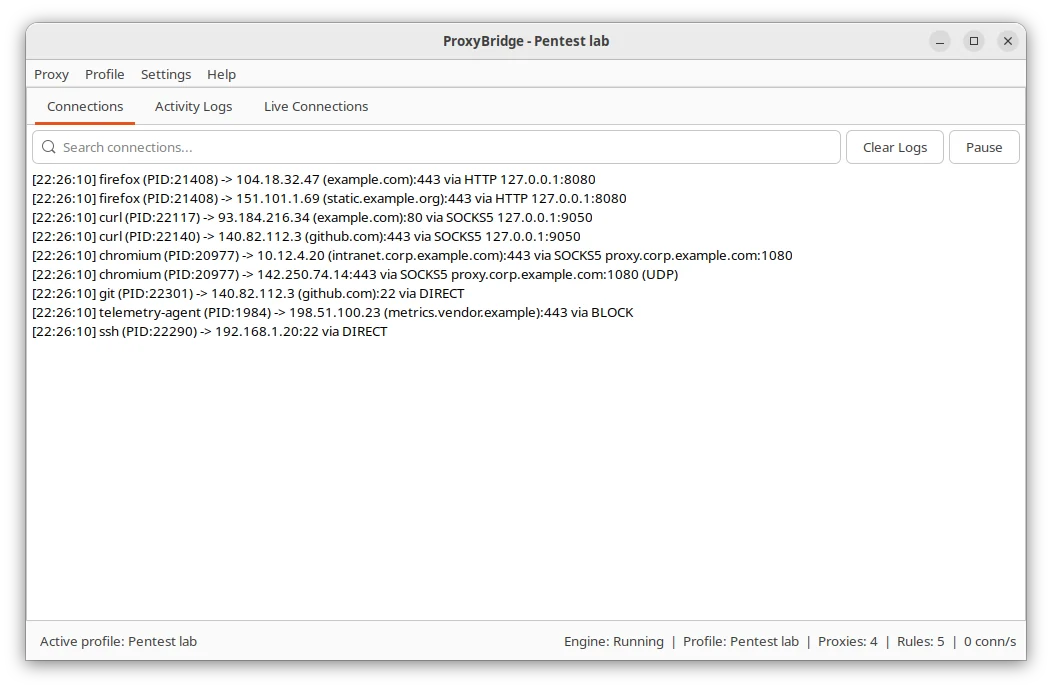
The window opens with the menus Proxy, Profile, Settings and Help, and three tabs: Connections, Activity Logs and Live Connections.
1. Add a proxy server
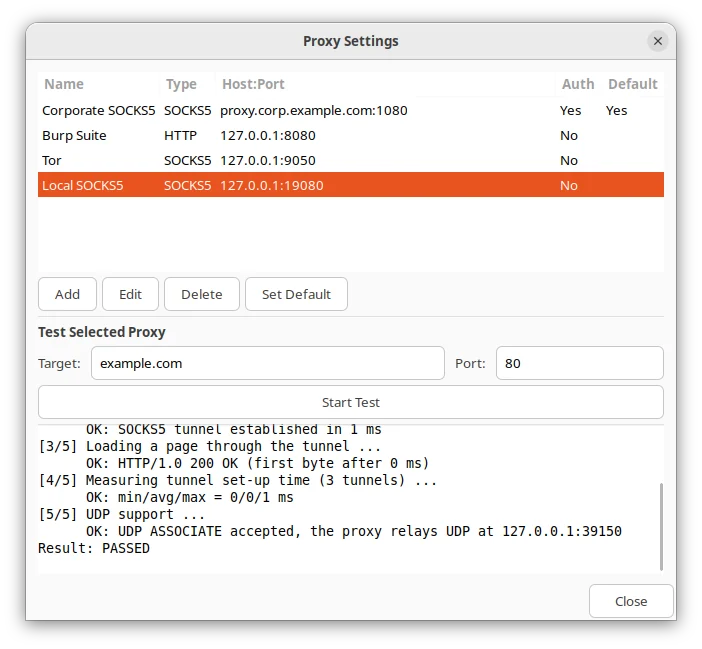
- Choose Proxy > Proxy Settings...
- Click Add.
- Give it a Name, choose the Type (
SOCKS5orHTTP), enter the Host and Port. - If the proxy needs a login, fill in Username and Password.
- Click Save, select the proxy in the list and click Start Test to check that it works.
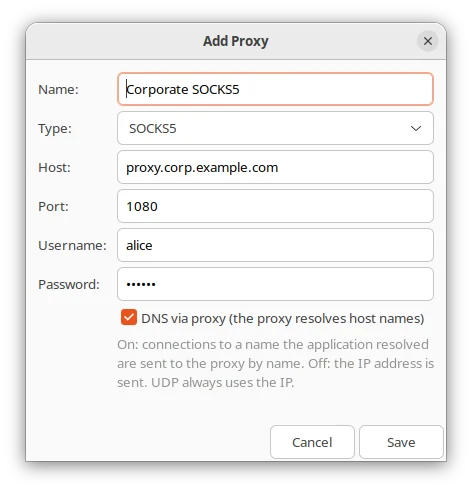
Details, including DNS handling and the five-step proxy test, are on the Proxy servers page.
2. Create a rule
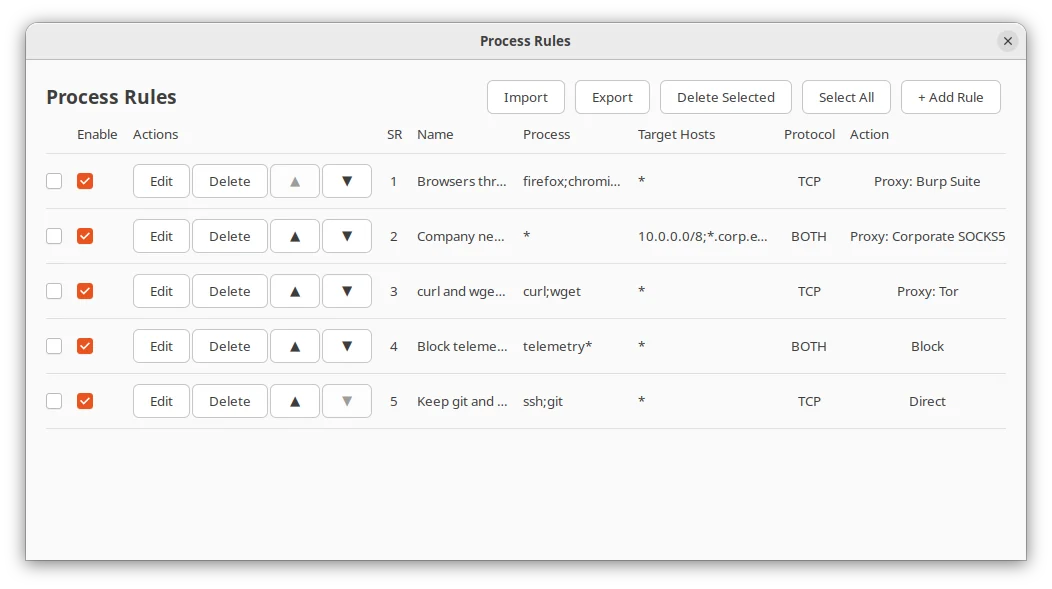
- Choose Proxy > Proxy Rules... and click Add.
- In Process Name, type the program name, for example
curl. Names are case-sensitive. - Leave Target Host and Target Port as
*to match everything this program does. - Choose your proxy in Action. Each proxy you added is listed by name, next to Direct and Block.
- Click Save. The rule is active at once; the Enable check box switches it off again.
Details for every field are on the Proxy rules page.
3. Check that it works
Start the program (only new connections are redirected), then look at the main window:
- Connections tab: each connection appears as one line, for example
curl (PID:22117) -> 93.184.216.34 (example.com):443 via SOCKS5 127.0.0.1:1080. A line ending invia DIRECTmeans no rule matched or the rule says Direct. - Live Connections tab: the connections open right now through a proxy, with bytes sent and received.
curl -I https://example.com
If nothing is listed as proxied, see Troubleshooting.
Try it with nothing installed
No proxy at hand? Run a throwaway SOCKS5 proxy with SSH on the same machine and point ProxyBridge at it:
ssh -D 1080 -N localhost # or any SSH server you can reach
Add a SOCKS5 proxy 127.0.0.1:1080, a rule for curl with that proxy, and run curl https://example.com. (SSH tunnels carry TCP only.) For UDP, QUIC and HTTP/3 use a proxy that supports UDP ASSOCIATE, such as Nexus Proxy.
The Linux guide
| I want to... | Read |
|---|---|
| Add, edit and test proxy servers, use authentication, run several proxies | Proxy servers |
| Match programs, hosts, domains, ports and protocols; understand rule order | Proxy rules |
| Keep separate setups, move them between machines, share them with a team | Profiles |
| See what is going through ProxyBridge and filter the log | Connections, Live Connections and logs |
| Pause ProxyBridge, start it at boot, change text size, check for updates | Settings, pausing and start at boot |
| Run a profile without the window, in scripts or as a service | Command line |
| See worked examples (browser, curl, desktop apps, UDP, blocking, ...) | Use cases and examples |
| Fix a problem | Troubleshooting and limits |
| Understand what happens to a connection | How it works |
Good to know before you start
- The service does the privileged work. The window runs as you; the ProxyBridge service (root) loads the eBPF programs. Only root and the group
proxybridgemay use it. See Install on Linux. - First match wins. Rules are checked from top to bottom. A broad rule above a narrow one hides it. See Proxy rules.
- Only new connections are affected. Restart a program after changing its rule.
- Localhost stays local by default. Connections to
127.0.0.1go direct unless you tick Also proxy localhost traffic on the rule. - UDP needs SOCKS5 with UDP support. An HTTP proxy cannot carry UDP and many SOCKS5 proxies cannot either. See UDP, QUIC and HTTP/3.
- Domain rules need plain DNS. Rules that match by host name work only when the program uses ordinary, unencrypted DNS. Turn off "Secure DNS" in the browser for those.
- If ProxyBridge stops, traffic goes direct. It is a routing tool, not a firewall. See How it works.