
macOS Guide
Proxy rules (macOS)
Every field of a ProxyBridge rule on macOS: bundle identifiers and process names, hosts and domains, ports, protocol and action. How rules are matched, why UDP rules match on the app only, how wildcard rules behave, and worked examples.
Proxy rules on macOS
A rule says: when this app connects to these hosts and ports over this protocol, do this. Rules decide which traffic is sent through a proxy, left alone, or blocked. Open them with Proxy > Proxy Rules... (⌘R).
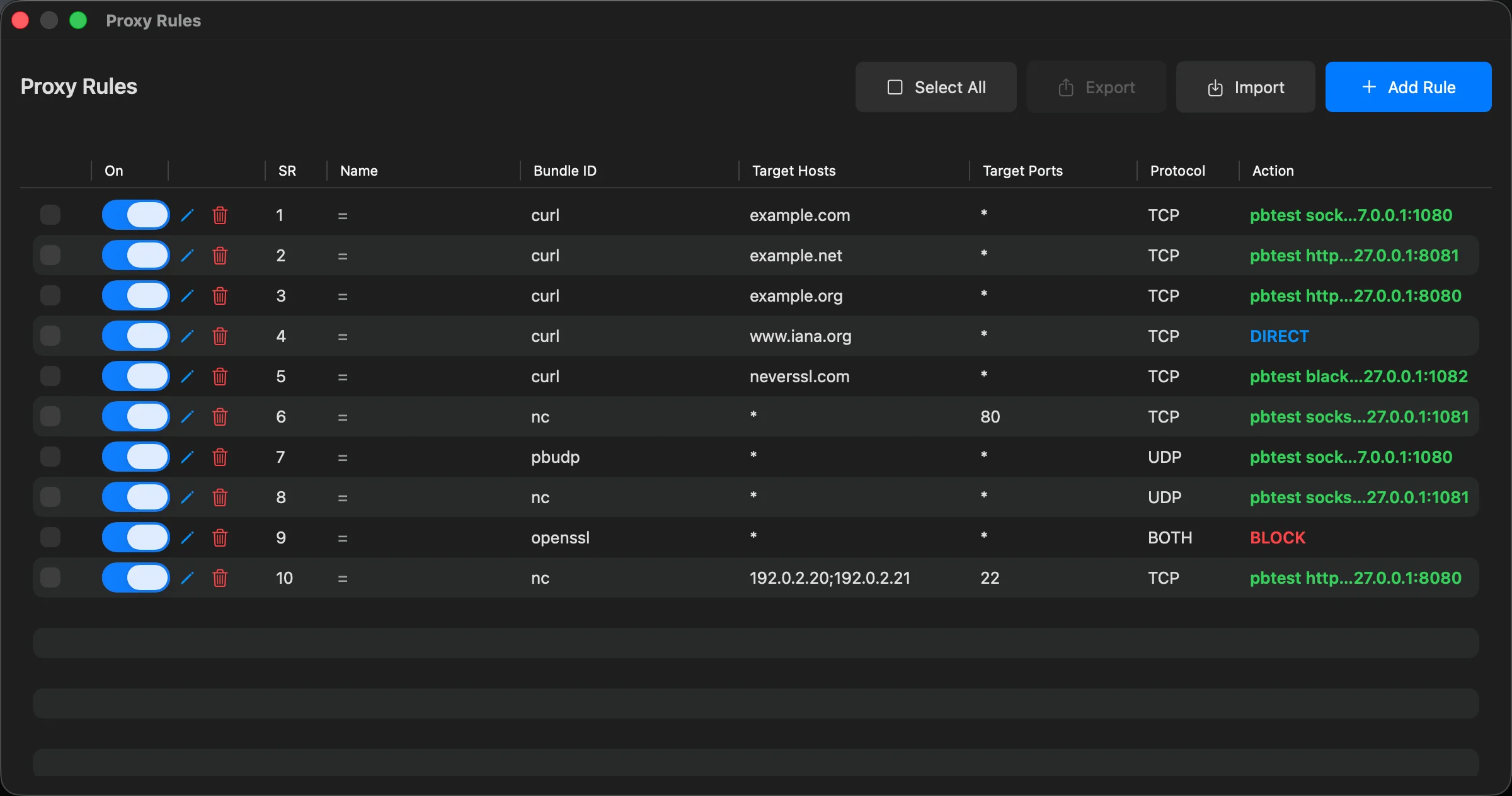
The rules window
| Part | What it does |
|---|---|
| Add Rule | Create a new rule |
| Select All / Deselect All | Tick or untick every rule |
| Export | Save the ticked rules to a JSON file (see Export and import rules). Greyed out until a rule is ticked |
| Import | Add the rules from a JSON file |
| Check box at the start of a row | Select the rule for Export |
| On switch | Turn a rule on or off without deleting it |
| Pencil and trash icons | Edit or delete the rule. Delete happens at once, without a question |
| SR | The rule's position in the list |
| Name, Bundle ID, Target Hosts, Target Ports, Protocol, Action | The rule's fields. An empty field shows as Any. The action shows the proxy's name, in green for a proxy, blue for DIRECT, red for BLOCK |
A rule change applies to connections opened afterwards. Connections that are already open keep the route they started with: restart the program, or wait for it to open a new connection.
The window is part of the profile that is active. Switch profiles and the list changes with it.
Add or edit a rule
Click Add Rule (or the pencil on a row).
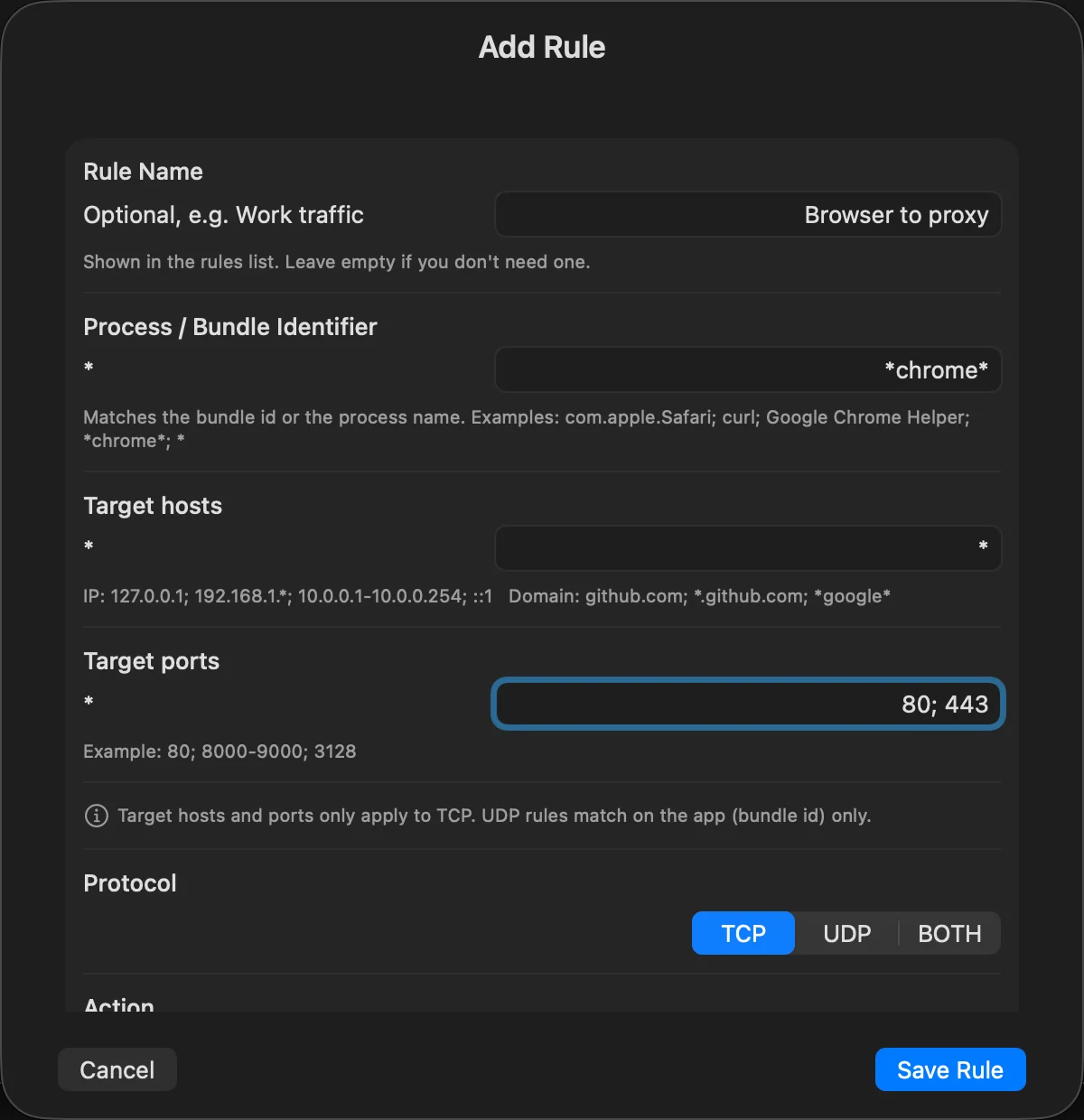
| Field | Meaning | Starts as |
|---|---|---|
| Rule Name | Your label. Optional. Shown in the Name column and stored in the profile | empty |
| Process / Bundle Identifier | Which apps the rule is for | * |
| Target hosts | Which destinations: IP addresses, ranges and domain names, separated by ; |
* |
| Target ports | Which destination ports | * |
| Protocol | TCP, UDP or BOTH |
TCP |
| Action | DIRECT, BLOCK, or one of your proxies |
your first proxy, or DIRECT if there is none |
A rule matches only when all of the process, host, port and protocol match.
The editor does not validate what you type. A misspelled entry is not rejected: it simply never matches (for example
80-orten.0.0.1). After saving, open the Connections tab and check that the traffic you expect is routed the way you intended.
Process names and bundle identifiers
The first field holds one or more patterns. ProxyBridge compares each pattern with two names of the program that opens the connection:
- its bundle identifier (the code-signing identifier), for example
com.apple.Safariororg.mozilla.firefox; - its process name, the file name of the executable, for example
curl,firefoxorGoogle Chrome Helper.
If either one matches, the program matches.
| What you type | Matches |
|---|---|
* (or empty) |
Every program |
curl |
A program whose process name or bundle identifier is curl |
com.google.Chrome |
That exact bundle identifier |
firefox; curl; wget |
Any of them. Separate entries with ; (a comma works too). Empty entries are ignored |
*chrome* |
Wildcards: * stands for any text, any number of times. *chrome*, com.google.* and py* all work |
How the match works:
- Matching is not case-sensitive:
Firefox,firefoxandFIREFOXare the same. *is the only wildcard.?is not special.- A pattern must match the whole name.
chromedoes not matchGoogle Chrome Helper, but*chrome*does. - Paths do not work. A pattern that contains a
/is compared with the bundle identifier or process name, neither of which ever contains one, so it never matches. Use the name. - A rule can match by bundle identifier or name, so you can write whichever is easier to find.
Finding the right name
Open the Connections tab, start the program, and read the green name in each line. That is the process name when ProxyBridge could find it, otherwise the bundle identifier. Use that text (or a wildcard version of it) in the rule. This matters more on macOS than elsewhere, because one app often makes its connections from helper processes:
| App | What you usually see in Connections |
|---|---|
| Google Chrome, Chromium-based browsers | A helper process such as Google Chrome Helper or Google Chrome Helper (...), not the main com.google.Chrome process. A rule for exactly com.google.Chrome can miss it. Use *chrome* |
| Firefox | firefox (bundle identifier org.mozilla.firefox) |
| Safari | Typically com.apple.WebKit.Networking, not Safari itself. Check the Connections tab |
| Visual Studio Code and other Electron apps | Helper names such as com.microsoft.VSCode.helper. Use a wildcard like com.microsoft.VSCode* |
| Terminal tools | The tool's name: curl, wget, git, ssh |
| Python, Node.js, Java scripts | The interpreter: python3 or Python, node, java. A rule for the script's file name never matches |
Rule of thumb. If a program's traffic stays
Directafter you added a rule, look at the exact name in the Connections log, and widen the pattern with*.
Target hosts
Target hosts limits the rule to certain destinations. Leave it as * for any destination. IP addresses and domain names go in the same field, separated by ; (a comma is not a separator here):
10.*.*.*; 192.168.1.1-192.168.1.50; github.com; *.corp.example.com
| Kind | Example | Notes |
|---|---|---|
| Any | * or empty |
Every destination |
| Single IPv4 | 192.168.1.1 |
|
| IPv4 with wildcards | 192.168.1.*, 10.*.*.* |
Each of the four numbers is either a value or *. All four parts are required, so 10.* does not work. There is no 10.1-5.*.7 style and no CIDR (/24) notation |
| IP range | 10.0.0.1-10.0.0.254, fe80::1-fe80::ff |
Inclusive. Both ends must be addresses of the same kind (both IPv4 or both IPv6). Works for IPv4 and IPv6 |
| Single IPv6 | ::1, 2001:db8::1 |
Compared as numbers, so ::1 equals 0:0:0:0:0:0:0:1 |
| IPv6 prefix | 2001:db8:* |
The leading groups, then *. Written without :: |
| Domain | github.com |
That exact name |
| Domain with wildcards | *.github.com, *google*, api*.example.org |
* stands for any text |
Things to know:
*.github.comalso matchesgithub.comitself. (The Linux app is stricter; on macOS the apex is covered.)- Domain names are compared in lower case.
- To write a CIDR network, use a range or wildcards instead:
10.0.0.0/8is10.*.*.*,192.168.0.0/16is192.168.*.*, and172.16.0.0/12is172.16.0.0-172.31.255.255. - A domain with a hyphen (
my-site.com) works: ProxyBridge first tries the entry as an IP range, and when that does not fit, uses it as a name. - Host and port limits apply to TCP only. See UDP rules.
Domain names need plain DNS
Host names also need Enable DNS to be on in the Proxy menu (it is on by default). With it off, a host name never matches and IP addresses still do. The rule editor shows a note about this.
The connection that reaches ProxyBridge carries only an IP address, because the app has already looked the name up. So ProxyBridge keeps a small list that says which names resolved to which IP address. It fills the list from the Mac's own DNS answers, which it sees through its DNS proxy. This has consequences:
- The lookup must have gone through the ordinary system DNS over UDP. Apps that use DNS over HTTPS or DNS over TLS (many browsers have a "Secure DNS" setting, and some VPNs and resolvers use encrypted DNS) hide their lookups from ProxyBridge. Their domain rules do not match. Turn encrypted DNS off for those apps, or match on IP addresses instead.
- The lookup must have happened after ProxyBridge started. The list is empty at start and is kept in memory only. An address an app resolved earlier, or one it connects to repeatedly from a cache, may have no known name until the app looks it up again.
- Apps that take an address from a config file, or have it built in, never look anything up. Use an IP rule for them.
- If one IP address has several names (common for CDNs), the rule matches when any of the known names matches. ProxyBridge keeps up to 8 names per address and up to 1024 addresses; the oldest are dropped.
- If a domain entry stops matching while an IP entry in the same rule still does, a missing DNS lookup is the first thing to suspect.
Target ports
| You type | Matches |
|---|---|
* (or empty) |
Every port |
443 |
One port |
80; 443; 8080 |
Several ports (, also works as separator) |
8000-9000 |
A range (inclusive) |
80; 443; 8000-9000 |
Ports and ranges together |
An entry that is not a number or a range (http, 80-, 9000-8000) is ignored. If no entry in the field is valid, the rule matches no port at all.
Protocol
| Choice | Matches |
|---|---|
| TCP | TCP connections only (web, most APIs, databases, SSH) |
| UDP | UDP only (DNS, QUIC/HTTP/3, games, voice) |
| BOTH | Either |
UDP only works through a SOCKS5 proxy, and not every SOCKS5 proxy supports it. An HTTP proxy cannot carry UDP: a rule that sends UDP to an HTTP proxy leaves that UDP traffic direct, and ProxyBridge writes a warning in the Activity Logs. The editor shows a warning too. A SOCKS5 proxy that accepts UDP is still not a guarantee that QUIC or HTTP/3 will work. See Troubleshooting.
UDP rules match on the app only
macOS hands ProxyBridge a new UDP "flow" without telling it where the datagrams will go. So for UDP:
- A rule is matched by process or bundle identifier and protocol only. The Target hosts and Target ports are ignored.
- A rule with the process
*and a host or port limit never matches UDP, because there is nothing to compare the limit with. - A
UDPorBOTHrule with specific programs therefore applies to all UDP traffic of those programs, whatever the destination.
If you write a rule for curl with the hosts 10.*.*.* and the protocol BOTH, TCP connections to 10.x.x.x match it, but all UDP from curl matches it too.
Action
| Action | What happens to matching traffic |
|---|---|
| DIRECT | Left alone. It goes out normally. Useful for exceptions |
| BLOCK | The connection is closed at once. The app sees the connection fail, or, for UDP, loses its datagrams |
| A proxy | Sent through that proxy. Every proxy from Proxy servers is listed with its name |
If a rule points at a proxy that no longer exists (for example the rule came from an imported file), its traffic goes direct, and ProxyBridge writes one error line in the Activity Logs: A rule routes to a proxy that no longer exists, its traffic is going direct.
How rules are matched
Rules are not simply read from top to bottom. ProxyBridge goes through the enabled rules in list order and applies these steps to each new connection:
- Skip rules that are switched off.
- Skip rules whose protocol does not fit (a
TCPrule never sees UDP traffic). - A rule with a specific program (not
*) that matches the program, host and port is used immediately. - A rule with the program
*and a host or port limit is also used immediately when the connection fits the limit (TCP only). - A rule with the program
*and no limits at all (all programs, all hosts, all ports) is a catch-all. It is not used immediately. ProxyBridge remembers the first catch-all and uses it only if nothing else matched. - If nothing matched and there is no catch-all, the connection goes direct and is logged as
Direct.
What follows from this:
- A specific rule always beats a catch-all, whatever their order. You can put a catch-all
*→ proxy rule anywhere and still exempt individual programs with their ownDIRECTrule. - Among specific rules, and
*rules that have a limit, the first match in the list wins. A broad specific rule above a narrow one hides the narrow one. Put exceptions above the rule they are exceptions to. - Only the first catch-all counts. A second catch-all never takes effect.
- A connection that matches no rule is not an error: it simply goes direct.
The rule list cannot be reordered in the window. There are no up and down buttons. A new rule goes to the end of the list, an imported rule is added at the end. To change the order, delete and re-add the rules in the order you want, or export the profile, edit the order in the JSON file, and import it again (see Profiles).
Always direct
- ProxyBridge's own traffic (the app and its extension) is never redirected, so the proxy test, update check and the connection to your proxy are not affected by your rules.
- Anything macOS itself does not give to ProxyBridge cannot be routed. A program that never appears in the Connections log is not reaching ProxyBridge.
- Connections that match no rule, or a
DIRECTrule, are handed back to macOS and go out normally.
Export and import rules
Export saves the ticked rules to a JSON file named ProxyBridge-Rules.json by default. Import reads such a file and adds its rules to the end of the current list (it never removes or replaces anything).
[
  {
    "name": "Chrome to Burp",
    "processNames": "*chrome*",
    "targetHosts": "*",
    "targetPorts": "80; 443",
    "protocol": "TCP",
    "action": "6D1B9A3E-4B7B-4D0A-9A3E-1B2C3D4E5F60",
    "enabled": true
  }
]
| Field | Meaning |
|---|---|
name |
The rule's name. May be empty |
processNames |
The Process / Bundle Identifier field |
targetHosts, targetPorts |
The two target fields |
protocol |
TCP, UDP or BOTH |
action |
DIRECT, BLOCK, or the internal id of a proxy. That id belongs to a proxy on the Mac where the file was exported |
enabled |
true or false |
A rule that uses a proxy cannot move to another profile or another Mac through rules export. The
actionholds the proxy's id, and the id does not exist elsewhere, so the imported rule would go direct (with the warning above). To move rules and proxies together, use profile export and import instead. Rules export is good forDIRECTandBLOCKrules, and for copying rules inside the same profile setup.
A file that is not valid JSON in this shape is ignored without a message, and nothing is added.
Examples
| Goal | Process | Hosts | Ports | Protocol | Action |
|---|---|---|---|---|---|
| Firefox to Burp | firefox |
* |
80; 443 |
TCP |
Burp |
| Chrome (any helper) to Burp | *chrome* |
* |
* |
TCP |
Burp |
| curl through Tor | curl |
* |
* |
TCP |
Tor |
| Everything to the company proxy, except the browser | * |
* |
* |
BOTH |
Company |
| ... the exception | *safari*; com.apple.WebKit.Networking |
* |
* |
BOTH |
DIRECT |
| Company network only | * |
10.*.*.*; *.corp.example.com |
* |
TCP |
Company |
| Block an app | com.example.tracker* |
* |
* |
BOTH |
BLOCK |
| Stop a browser's QUIC (UDP) | *chrome* |
(ignored) | (ignored) | UDP |
BLOCK |
More complete walk-throughs are in Use cases.
Tips
- Start with one rule for one program and watch the Connections tab. Add more when it works.
- Use wildcards for programs with helpers:
*chrome*,com.microsoft.VSCode*. - Put exceptions above broad rules, and remember a catch-all (
*with no limits) is always the last resort. - Keep
DIRECTrules for your proxy tool (Burp Suite, mitmproxy) when you use a catch-all rule, so it does not route itself. - When a rule does nothing, read Troubleshooting.