
macOS Guide
Profiles (macOS)
Save, switch, rename, delete, export and import ProxyBridge profiles on macOS. What a profile contains, where the data is stored, and the .pbprofile format you can edit and run from the command line.
Profiles on macOS
A profile is a complete set-up you can switch to in one click: your proxy servers, your rules, and a few settings. Use profiles to keep separate set-ups for separate jobs, for example Burp, Tor and Work, and move between them without re-entering anything.
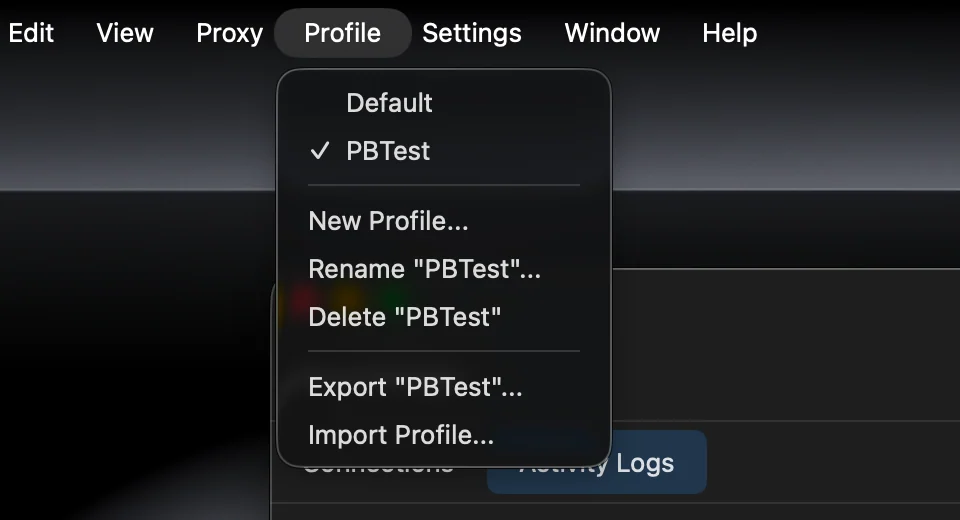
Everything is in the Profile menu.
What a profile contains
| Part | Stored in the profile |
|---|---|
| Proxy servers | Yes, with their names, ports, credentials and the DNS (send hostname) option |
| Proxy rules | Yes, in order, with their enabled state |
| Enable Traffic Logging | Yes, per profile (on by default) |
| Close to Menu Bar | Yes, per profile (off by default) |
| Run at Startup | Yes, per profile (off by default) |
| Enable DNS | Yes, per profile (on by default) |
When you switch profiles, ProxyBridge sends the new proxies and rules to the running extension at once, applies the logging setting and the start-at-login setting, and the rules window shows the new list. Connections that are already open keep their route.
The very first time you start a version of ProxyBridge that has profiles, it creates a profile called Default from the proxies and rules that were already stored.
The Profile menu
| Item | What it does |
|---|---|
| The list of profiles | Click a name to switch to it. A check mark shows the active profile |
| New Profile... | Asks for a name and creates an empty profile (no proxies, no rules), then switches to it |
| Rename "name"... | Renames the active profile |
| Delete "name" | Deletes the active profile and moves to another one. Greyed out when it is the only profile |
| Export "name"... | Saves the active profile to a .pbprofile file |
| Import Profile... | Adds a profile from a .pbprofile file (or a .json file) and switches to it |
Rules for names: they are trimmed of spaces at both ends, cannot be empty, and cannot repeat an existing name. A name that is empty or already used is refused without a message: nothing happens. Delete has no confirmation question.
Switching
Choose another profile from the menu. The current one is saved first, the other one is loaded. There is nothing to confirm and nothing to restart.
An empty profile is also the way to pause ProxyBridge without quitting it: make a profile called Off (New Profile...), and switch to it. With no rules, every connection goes direct. Switch back to your working profile to turn routing on again. See Settings.
Everything is saved automatically
There is no Save button. Changes to proxies, rules and the three settings are stored as you make them, in the active profile. Quit and start again and everything is as you left it.
Export and import
Use Export "name"... to back up a set-up, move it to another Mac, or give it to a colleague. Use Import Profile... on the other side.
- The export dialog suggests
name.pbprofile. - Importing creates a new profile. It never overwrites an existing one. The name comes from the
nameinside the file (orImportedif there is none). If the name is taken,(2),(3)and so on is added. ProxyBridge then switches to the new profile. - A file that is not JSON is ignored without a message.
- The
.pbprofilefile is plain JSON. You can edit it in a text editor, keep it in version control and run it with the command line (cat file.pbprofile | proxybridge --profile -). - Importing does not check the contents. A rule with a wrong field imports fine and simply does not match, and a malformed proxy list imports without a message and shows up as no proxies at all. The command line does check the file completely before running it, so running it once is a good way to validate a profile.
Not the same file as on Windows and Linux. The
.pbprofilefile that ProxyBridge for macOS writes has its own layout (lower-case keys such asproxyConfigsandproxyRules, shown below). The Windows and Linux apps use capitalised keys (ProxyConfigs,ProxyRules). A macOS profile cannot be imported on those systems, and a Windows or Linux profile imported on macOS creates an empty profile calledImported. Rebuild the rules on the other system, or translate the file by hand.
Passwords are stored in clear text
Proxy user names and passwords are written in clear text, both in the app's preferences and in exported .pbprofile files. Before you share an exported profile, delete the username and password values from it, or use a proxy account that you can throw away. The same is true for backups of your preferences.
Where the data is stored
ProxyBridge for macOS runs in the App Sandbox, so its settings live in its own container:
~/Library/Containers/com.interceptsuite.ProxyBridge/Data/Library/Preferences/com.interceptsuite.ProxyBridge.plist
| Key | What it holds |
|---|---|
profiles |
The list of profile names |
activeProfile |
The profile in use |
proxyConfigs, proxyRules, trafficLoggingEnabled, closeToMenuBar, runAtStartup |
The working copy of the active profile (what the app and the extension read) |
profile.<name>.proxyConfigs (and .proxyRules, .trafficLoggingEnabled, .closeToMenuBar, .runAtStartup) |
The saved copy of each profile |
The extension itself stores nothing: the app sends it the proxies and rules each time, and it keeps them in memory only. When the app quits, the extension is told to forget them.
You do not need to touch this file. Do not edit it while ProxyBridge is running, and be careful with defaults commands on this domain: use Export to take a backup instead.
The .pbprofile format
{
  "name": "Pentest lab",
  "trafficLoggingEnabled": true,
  "closeToMenuBar": false,
  "runAtStartup": false,
  "dnsEnabled": true,
  "proxyConfigs": [
    {
      "id": "burp",
      "name": "Burp Suite",
      "type": "http",
      "host": "127.0.0.1",
      "port": 8080,
      "sendDomain": true
    },
    {
      "id": "tor",
      "name": "Tor",
      "type": "socks5",
      "host": "127.0.0.1",
      "port": 9050,
      "username": "alice",
      "password": "secret",
      "sendDomain": true
    }
  ],
  "proxyRules": [
    {
      "name": "Chrome to Burp",
      "processNames": "*chrome*",
      "targetHosts": "*",
      "targetPorts": "80; 443",
      "protocol": "TCP",
      "action": "burp",
      "enabled": true
    },
    {
      "name": "curl through Tor",
      "processNames": "curl",
      "targetHosts": "*",
      "targetPorts": "*",
      "protocol": "TCP",
      "action": "tor",
      "enabled": true
    },
    {
      "name": "Block a tracker",
      "processNames": "com.example.tracker*",
      "targetHosts": "*",
      "targetPorts": "*",
      "protocol": "BOTH",
      "action": "BLOCK",
      "enabled": true
    }
  ]
}
| Field | Meaning |
|---|---|
name |
The profile's name |
trafficLoggingEnabled |
Proxy > Enable Traffic Logging |
closeToMenuBar, runAtStartup |
Settings > Close to Menu Bar and Run at Startup |
dnsEnabled |
Proxy > Enable DNS. Optional, true when missing |
proxyConfigs[].id |
Any text that is unique in the file. Rules refer to it. The app writes a UUID such as 6D1B9A3E-4B7B-4D0A-9A3E-1B2C3D4E5F60; a hand-written file can use a short word |
proxyConfigs[].name |
The proxy's label. Optional |
proxyConfigs[].type |
socks5 or http |
proxyConfigs[].host, port |
Where the proxy listens. port is a number |
proxyConfigs[].username, password |
Optional. Both are needed for authentication |
proxyConfigs[].sendDomain |
The Let proxy resolve DNS (send hostname) option. Optional, true when missing |
proxyRules[].name |
The rule's label. Optional |
proxyRules[].processNames, targetHosts, targetPorts |
The three fields of the rule |
proxyRules[].protocol |
TCP, UDP or BOTH (BOTH when missing) |
proxyRules[].action |
DIRECT, BLOCK, or the id of a proxy |
proxyRules[].enabled |
true or false (true when missing) |
A profile written by hand needs only proxyConfigs and proxyRules. The command line checks these limits before it runs a file: no more than 100 proxies and 5000 rules, ports from 1 to 65535, proxy types socks5 or http, unique proxy ids, and a rule protocol of TCP, UDP or BOTH.
A rule whose action names a proxy that is not in the file still loads: its traffic goes direct and a warning is written to the log (the command line prints rule N sends traffic to a proxy that is not in this profile, it will go direct).
Ideas for using profiles
- One profile per proxy tool:
Burp,mitmproxy,InterceptSuite,Tor. Switch tools without re-entering rules. - A clean "off" profile: an empty profile stops all routing while keeping your real set-up untouched.
- A profile per engagement for pentests, exported and stored with the project notes.
- Different behaviour per profile: a work profile that starts at login and hides in the menu bar, a lab profile that does not.
- A shared team profile: export it, review it (remove passwords), commit it, and have everyone import the same rules.
- Scripts and servers: keep a
.pbprofilein version control and run it with the command line.